



Tracking, collecting, organizing, reading, and assimilating the relevant references is an integral process of any scientific research. But this process is laborious when done manually. Hence was the development of reference management softwares (Zotero, Mendeley, EndNote, etc.) for the digitalization of relevant scholarly materials and facilitating the process of managing references.
Reference managers provide an efficient way to the scientific authors (a) to track, collect and organize several reference materials. They also provide (b) virtual library with unlimited storage for reference materials with backup, (c) aid in easy management of the process of citation and automatic insertion of a reference/bibliography list in the required formatting style as well as (d) to create and collaborate with multiple libraries/groups. This particular chapter is prepared to give you an overview of the specific features and a quick start guide to use a popular reference manager ‘The Zotero’.
What is Zotero?
Zotero (zoh?TAIR?oh) is a free and open-source software tool package that serves to collect, store, organize, cite, and manage bibliographic data, research information, and sources.
What are the features of Zotero?
Available for Windows, Mac, and Linux
Collects information about research materials from sources such as library catalogs, research databases, websites, etc.
Catalogues the digital version of the reference sources including the journal articles, images, audio clips, video recordings, etc. with relevant tags and descriptions
Allows to keep reading notes, annotations/remarks attached to the citations
Permits to access Zotero library from any location
Allows for plugins to MS word and Libreoffice
Creates bibliographies using preferred citation/referencing styles
Allows to share reference materials within a defined interest group
Provides support through active forums with developers and power users
How to get started with Zotero? - Download, install and Signup
Go to www.zotero.org from a web browser such as Chrome, Firefox, Safari, or Opera (Note: Zotero doesn’t work with Explorer/edge)
On the Zotero home page, click on the download link where Zotero for windows and Zotero connector will be seen (Figure 01)
Download and open the Zotero file and install the Zotero application for the operating system
Click the “Install Connector” link for the browser and follow the instructions
Select ‘add extension’ when prompted
Shall we explore the features of Zotero?
Open the Zotero program using the desktop application
Sync feature: Go to the tab named ‘Sync’ where Zotero account login can be created that allows to sync citations and any reference attachments on to the Zotero cloud server for a backup as well as to sync across devices (Figure 02)
Cite feature: Go to the ‘cite’ tab and there will be default referencing/citations styles, where additional styles can also be added (if required)
Create a new folder: We can either explore Zotero library or can create separate folders for each research projects (Figure 03)
Adding reference materials: They can be added either directly from the webpage, or any folder in your computer, or even from the Zotero main library (Figure 04)
Article information pane: Click on one of the articles and the metadata for that item is shown in the right pane These include several fields that is captured for us which can be edited as and when required (Figure 05)
Notes: Choose the item within Zotero main library/specific folder where we can add a note to by clicking on the ‘Notes’ tab, then click "add." (Figure 06)
Tags: Helps to add descriptive keywords, so-called tags, to items, files, links and notes (Figure 07)
Quick searches: show items whose metadata, tags, or full text content match the search terms and are performed from the Zotero toolbar. Zotero also has the option for ‘Advanced searches that allows for more complex or specific searches.
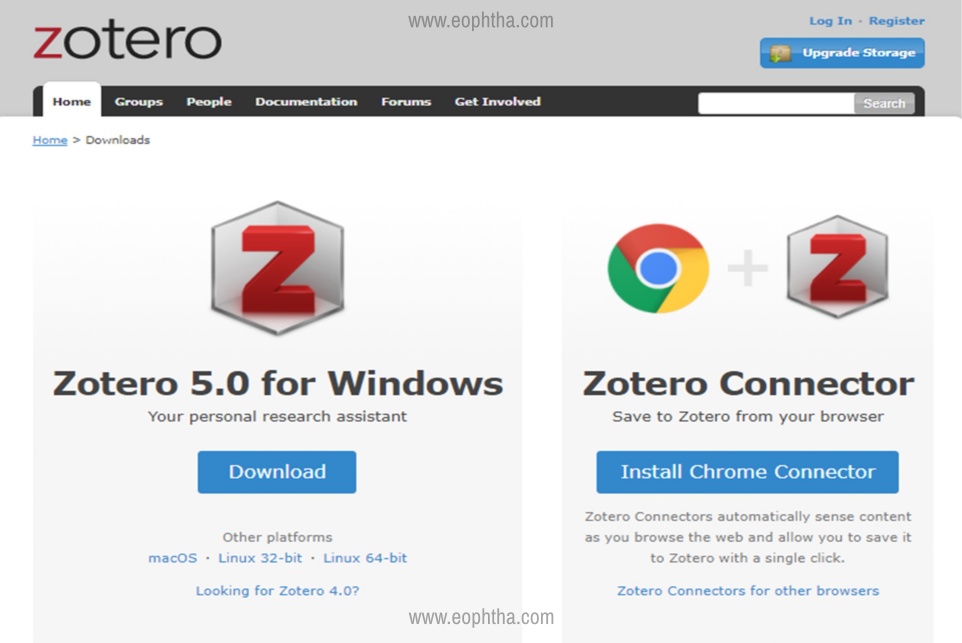
Figure 01: Zotero home page with the downloadable link for Zotero (Left panel) and the Zotero connector (Right panel)
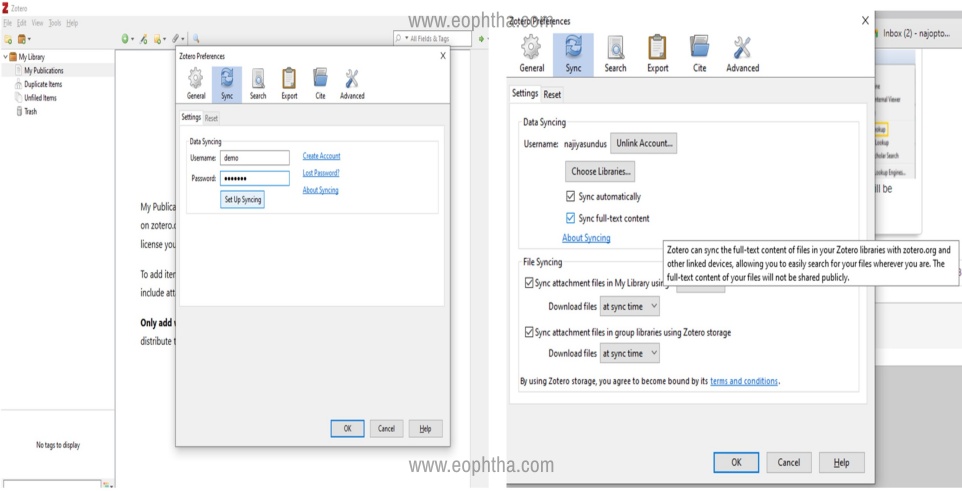
Figure 02: The sync feature in Zotero can be activated by selecting the tab ‘Edit’ and followed by the ‘Preferences’ in the drop-down menu. Then go to the second tab named as ‘Sync’ where Zotero account login can be created
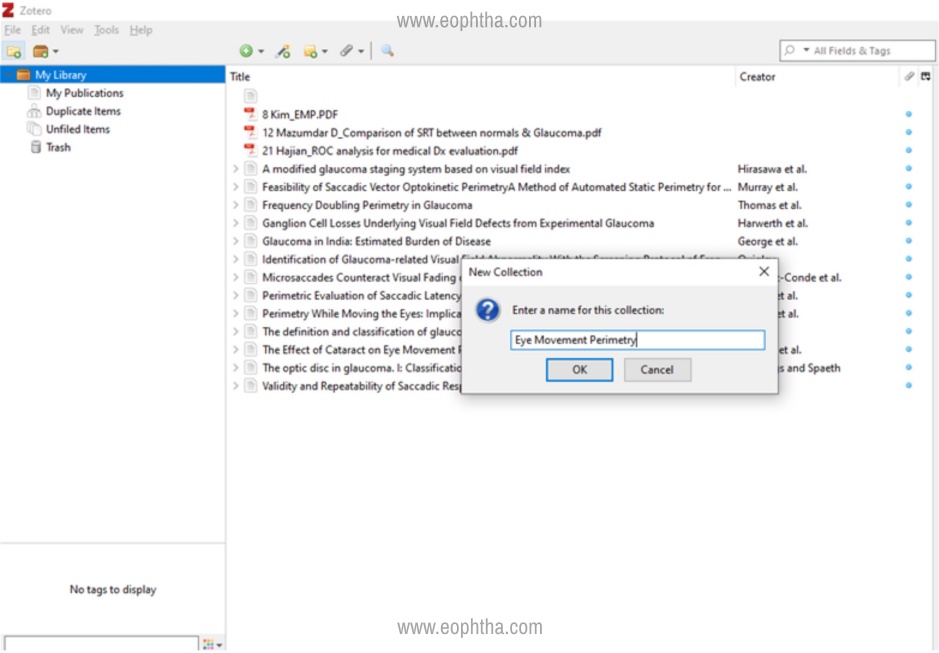
Figure 03: To create a new folder, go to the top left icon to create new collection, that will prompt to enter a name for the folder where reference materials can be stored and organised
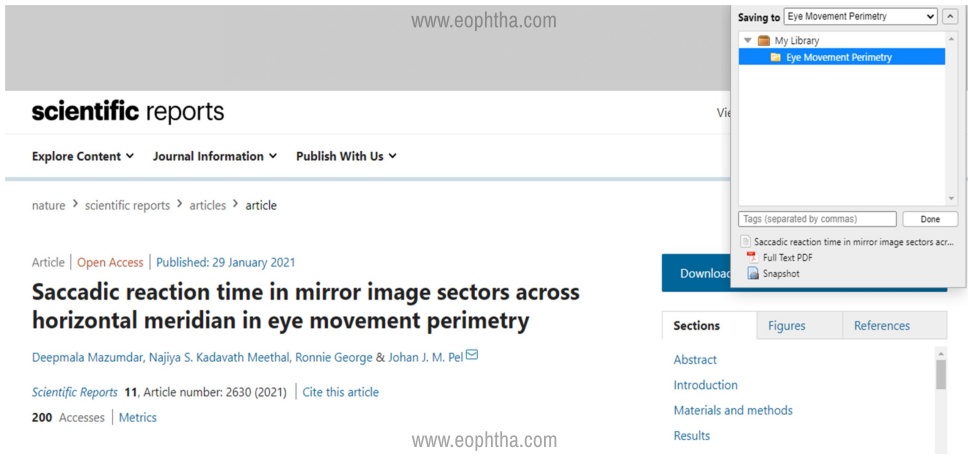
Figure 04: To add/save reference materials from a webpage, click on Zotero connector, a save option will be prompted, and it can be saved to your folder of choice/Zotero library
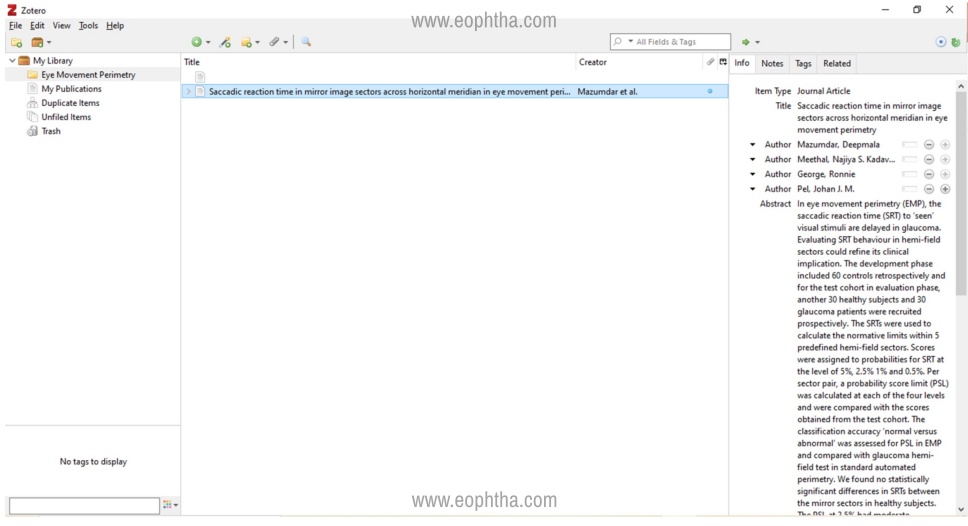
Figure 05: The info of the selected file includes title, creators, publisher, date, page numbers, and any other data needed to cite the item
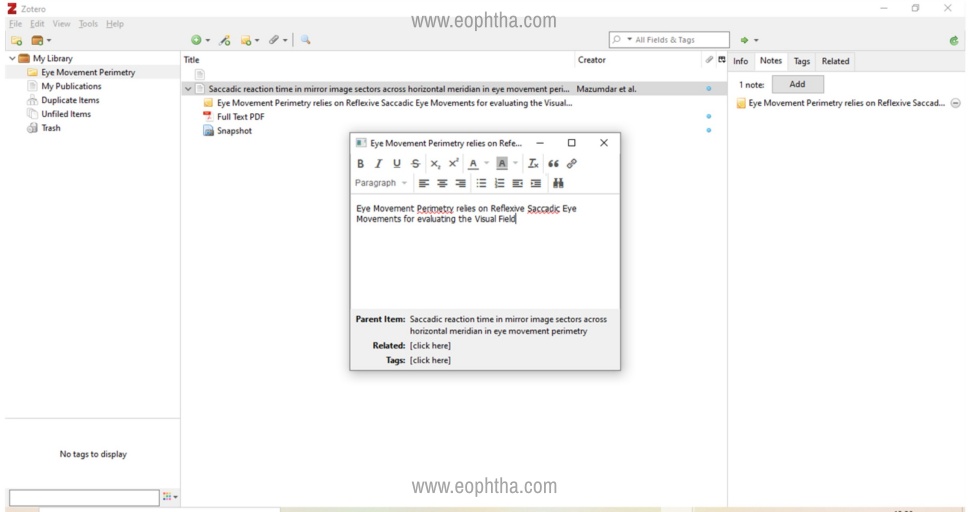
Figure 06: Notes can be typed in the text editor that open up and that will be automatically saved as an attachment beneath the item. This feature also allows for highlighting, making lists etc.
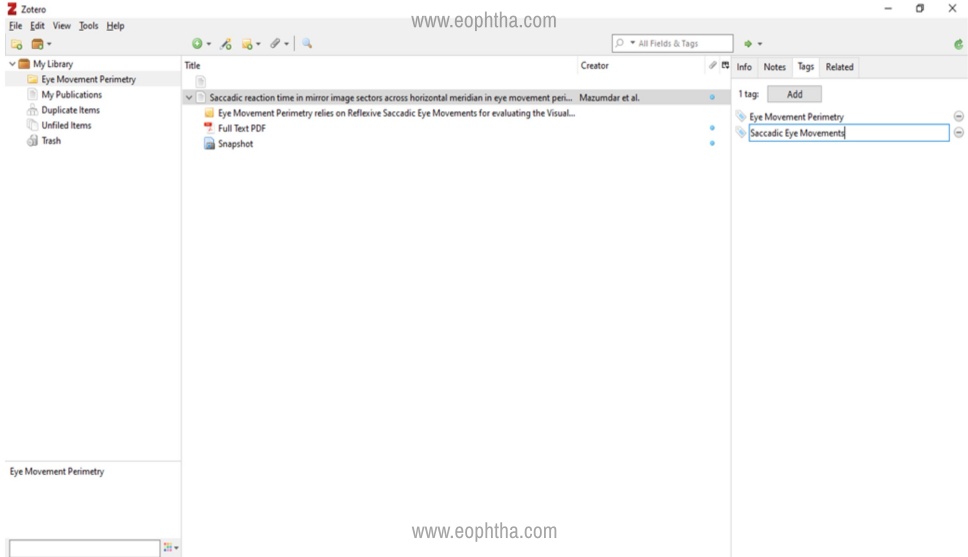
Figure 07: Click the add button, type the tag name, and type enter/return. You can even rename a tag by clicking on it and typing the new name
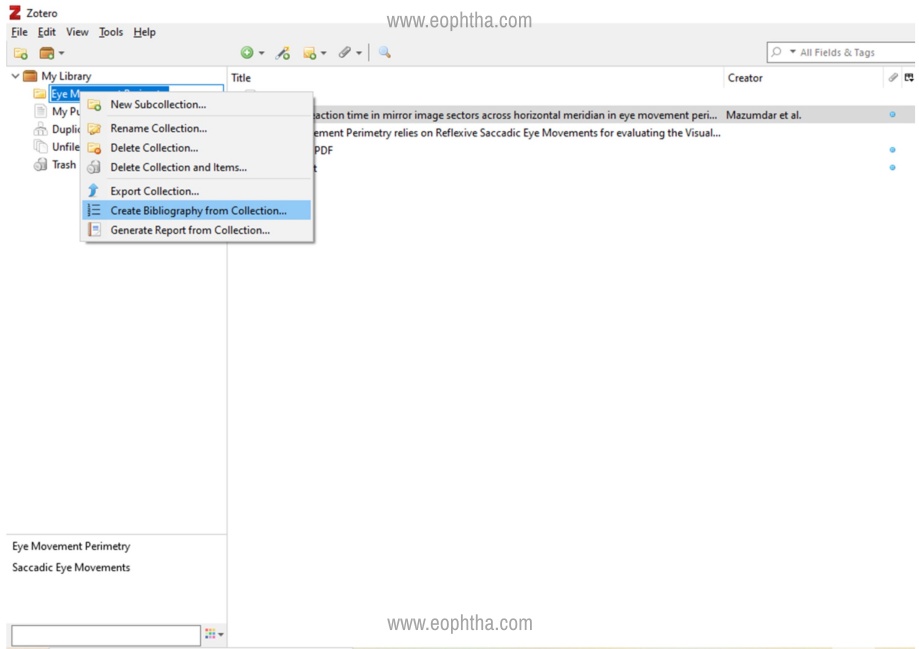
Figure 08: Right click on the particular folder, and select ‘Create bibliography from collection’ from the drop-down menu, which prompts a separate window with all the available referencing styles
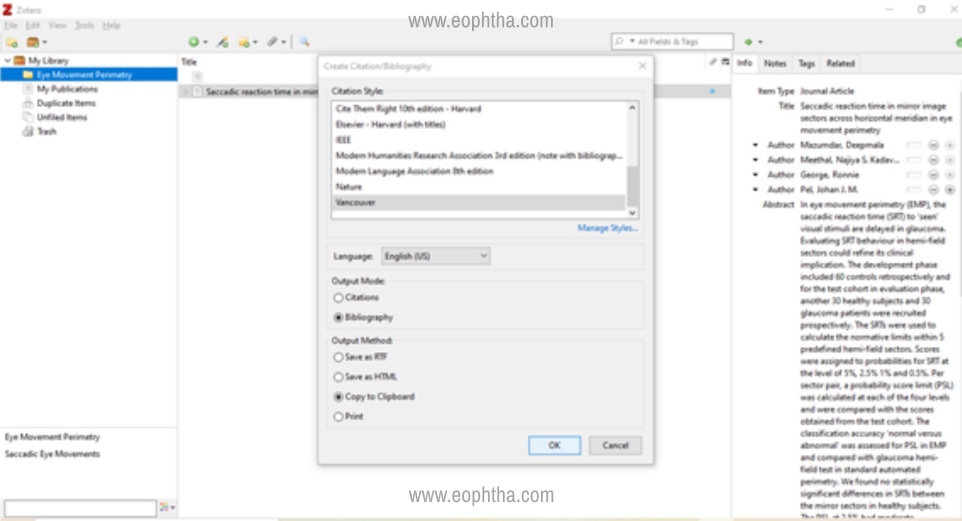
Figure 09: Click on the options of ‘Bibliography’ under the output mode and ‘Copy to Clipboard’ under the output method tab. The output can be pasted on to a word document
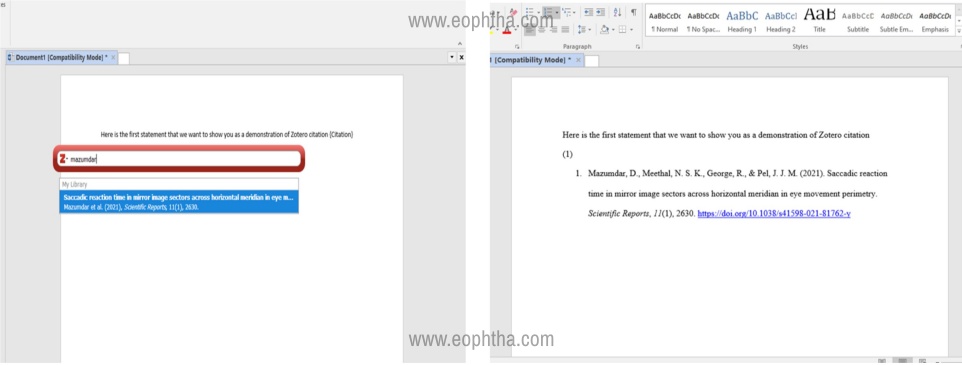
Figure 10: Left panel shows the Zotero toolbar and the right panel shows the generated bibliography
How to Create citations/bibliography using Zotero?
In the Cite tab, click on Install Microsoft Word Add-in to get the latest version of the Microsoft Word or Libreoffice plugin. Make sure to choose the right platform (Windows or Mac).
When prompted, click Allow, then Install Now.
Restart Word or OpenOffice/Libreoffice
Windows: Look for a tab called Add-ins or the icons shown below in your toolbar and for Mac OS you will either see the toolbar in separate window to in the Apple scripts
Select ‘Create bibliography from collection’ (Figure 08) and choose the desired style from the list (Figure 09)
Add-in text citations & generate bibliography - After writing a text, click the cursor where the citation has to be inserted, go to the Zotero icon to insert citation, Zotero tool bar will appear where you can type in the reference element i.e. title, author etc. (Figure 10) to generate bibliography
How to collaborate with interest groups using Zotero?
The feature of ‘Shared group libraries’ make it possible to collaboratively manage research sources, both online and through the Zotero client where its website can act as the hub for all your collaborative communication and activities.
Eight tips for getting the most with Zotero
Close MS office products in prior to the installation as it allows Zotero to add an automatic plug-in in MS word
If you don’t have a PDF/full text of your reference, then just do a quick google search and drag the link from the page onto the reference in your library. Zotero will store and attach the PDF.
If you want to add a series of related references to the Zotero library the begin with one item, fill in the particulars, and duplicate the template
Press Ctrl+Shift+C (Cmd-Shift-C on the Mac) or use the drag and drop option to quickly copy a citation (the shortcut key can be customized under Shortcut keys)
If you want to tag multiple items at a time, then select and drag them onto the tag you want to use where it will be applied to all the items. An item can be assigned as many tags as is needed which can be added or removed with the tag selector. Tags can be assigned with colors that will be readily visible in the item list and can be quickly managed.
Use bits of code known as translators to recognize information on web pages.
Use ‘timeline’; feature to visualize your bibliography by selecting a set of references, a tag, or a collection and click ‘Create timeline’. Type in the "Date" field of Zotero, "Yesterday", "Today" or "Tomorrow" and the date field will automatically convert into the respective dates
You may export a library from other reference managers like EndNote, Mendeley, etc., and import the library to Zotero.
To know more about Zotero:
1. Zotero: A Beginner's Guide (https://libguides.unm.edu/Zotero/manage) Last accessed on March 24th 2020, 16:00 IST
2. Zotero tutorial: https://aulibrary.avinuty.ac.in/uploads/files/Zotero tutorial.pdf Last accessed on March 24th 2020, 16:15 IST
Read Mendeley Reference Manager: A Step-by-step Guide. Click here